
Introduction
You already know how to write a text-to-image prompt. You have a subject, a style, lighting, mood, and an aspect ratio. You stack modifiers, test the output, and refine. The process is structured and predictable – in most cases, at least.
Text-to-video prompting uses the same starting vocabulary. But then it asks for something more. A still image is a single moment. A video is a sequence of moments. That difference – describing time, not just appearance – changes what belongs in your prompt and why it matters.
This article explains how text-to-video prompting differs from image prompting. You will learn four structural requirements that image prompts do not need: motion description, temporal direction, camera instruction, and duration. You will see what each one does to the output, and why leaving any of them out tends to produce less coherent clips. If you are moving from image prompting into text-to-video prompting, this is the foundation.
Why Image Prompts Are Not Enough for Video
The same modifier language that works for images – subject, style, lighting, mood – carries over to video prompting. That part transfers directly. But a video prompt that stops there will often produce an output that looks like an animated image rather than a deliberate sequence of events.
The problem is that video tools are generating motion, not just appearance. When you give a video tool a subject and a style but no instruction about what moves or how, the tool fills the gap with its own defaults. Sometimes that is fine. More often, the result is inconsistent camera drift, random subject movement, or a clip that starts clearly but degrades partway through.
The four additional elements that video prompts typically require are not optional extras. They are the structural layer that describes the dimension images lack: time.
| Element | Text-to-Image Prompt | Text-to-Video Prompt |
|---|---|---|
| Subject | Required | Required |
| Style | Required | Required |
| Lighting | Recommended | Recommended |
| Mood | Recommended | Recommended |
| Aspect Ratio | Optional | Optional |
| Motion Description | Not applicable | Required |
| Camera Instruction | Not applicable | Required |
| Temporal Direction | Not applicable | Recommended |
| Duration | Not applicable | Recommended |
| Audio | Not applicable | Optional (tool-dependent) |
The Four Structural Requirements of Video Prompts
Each of the four elements below controls a specific dimension of your video output. Understanding what each one does – and what happens when it is absent – is the most direct way to improve the coherence of your clips.
1. Motion Description
Motion description tells the tool what moves in the scene, how it moves, and in what direction. This is the most fundamental addition to a video prompt. Without it, you are describing a still image and asking the tool to decide what to do with it.
Motion can apply to the subject (what the person or object does), to environmental elements (wind in trees, ripples on water), or to the camera itself (covered in section 3). The key principle: be explicit about what moves. Do not assume the tool will infer it from the subject description alone.
| Prompt | A woman in her 30s seated at a glass desk. Reviewing documents. Warm natural light. Minimal modern office. Calm atmosphere. |
| Prompt | A woman in her 30s seated at a glass desk, reviewing documents. She glances up from the page, pauses briefly, then looks back down. Warm natural light from the left. Minimal modern office. Calm atmosphere. |
The second version gives the tool a clear action sequence. The subject enters a state, responds to something, and returns to task. That arc produces a more deliberate clip than the first version, which leaves the tool to decide whether the subject moves at all.
2. Temporal Direction
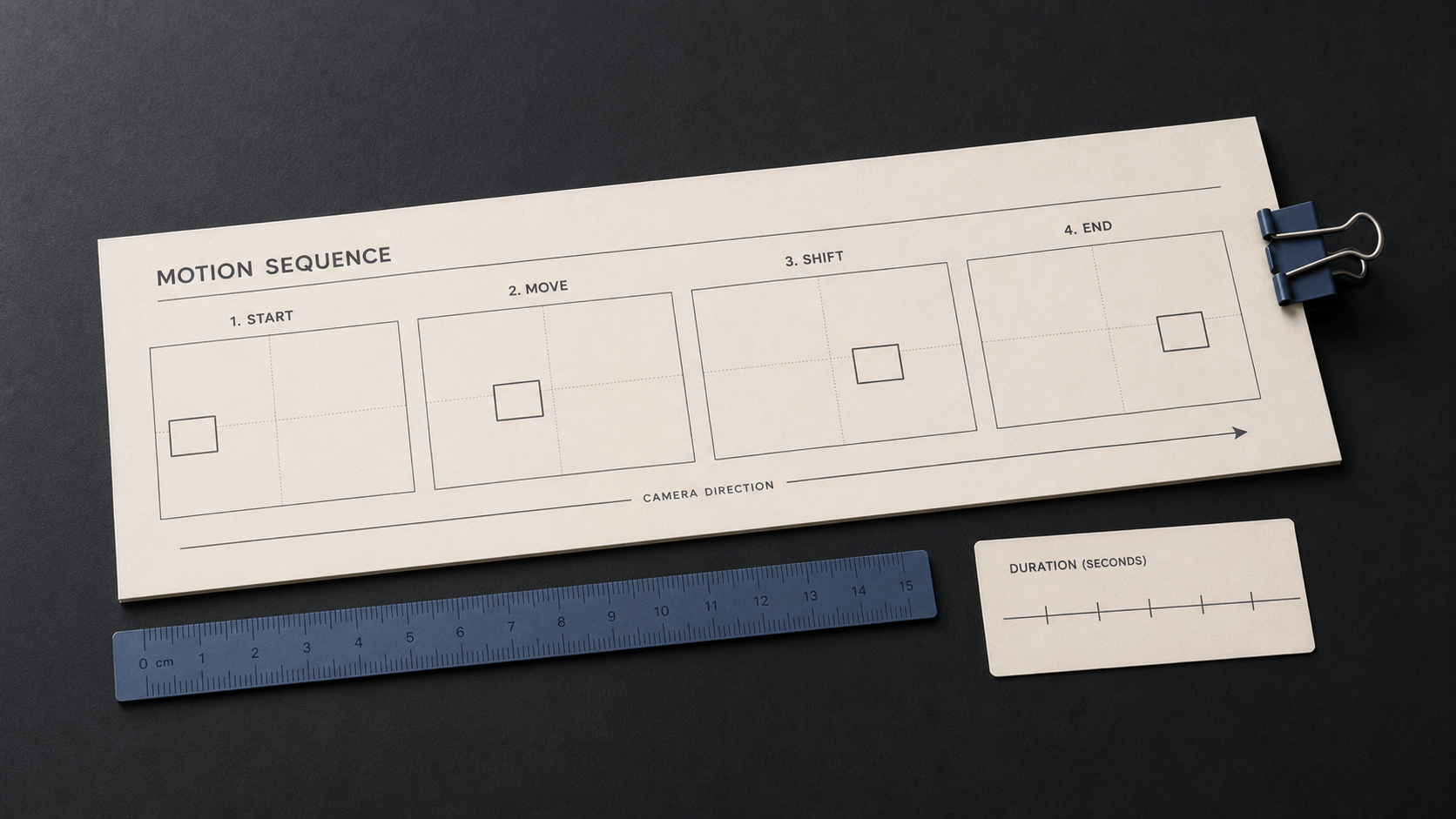
Temporal direction describes how the clip changes from its start state to its end state. It gives the video a beginning, a middle, and an implied end – even in a clip that is only 6 to 10 seconds long.
You do not need to write a full story arc for every clip. A single temporal cue – how the scene opens, what shifts during the clip, or how it concludes – tends to produce more coherent output than a description that captures only one static moment.
Temporal cues commonly describe:
- A starting condition that changes during the clip
- A subject action with a clear direction (approaches, turns away, stands up)
- An environmental shift (light changes, crowd thins, fog lifts)
- An ending state that differs from the opening (subject has moved, angle has shifted)
| Prompt | A cargo ship on a calm ocean at golden hour. Warm amber light, slight haze. Cinematic style. |
| Prompt | A cargo ship crossing a calm ocean at golden hour. Wide shot: ship enters frame from the left at the start. By the end of the clip, the ship has passed across and exits right. Warm amber light, slight haze. Cinematic style. 8 seconds. |
The second version tells the tool where to start and where to end. That directional instruction produces a clip with a clear visual arc rather than a looping or ambiguous sequence.
3. Camera Instruction
Camera instruction tells the tool how the camera itself behaves during the clip. Even a static scene changes character significantly depending on whether the camera holds still, slowly pushes in, pulls back, or pans across the frame.
Camera instructions are often the single most efficient way to change the feel of a video output without changing the subject or style. They are also among the most commonly omitted elements, which is why many clips generated without them feel directionless, even when the subject description is strong.
| Camera Instruction | What It Does | Typical Use Context |
|---|---|---|
| Camera holds still | Fixed frame throughout the clip | Interview-style, product shots, subject-forward scenes |
| Camera slowly pushes in | Gradual zoom toward the subject | Building emphasis, intimacy, tension |
| Camera pulls back / zooms out | Reveals wider context as clip progresses | Establishing scenes, reveal moments |
| Camera pans left / right | Horizontal sweep across the scene | Environmental reveals, following movement |
| Camera tilts up / down | Vertical movement, reveals scale | Architecture, landscape, vertical subjects |
| Handheld camera movement | Slight organic motion, documentary feel | Realistic, street-level, journalistic tone |
| Drone / aerial shot moving forward | High angle, gliding forward motion | Establishing shots, landscape reveals |
| Prompt | A product designer reviewing a prototype on a wooden workbench. Camera starts at a medium wide shot, then slowly pushes in to a close-up of the designer’s hands as they turn the object. Soft workshop light. Focused, professional atmosphere. 8 seconds. |
Without the camera instruction in this example, the tool would need to decide how to frame the scene. The push-in toward the hands gives the clip a deliberate arc and keeps viewer attention on the object of interest.
4. Duration
Duration specifies how long the clip should run. Most text-to-video tools accept a duration instruction in seconds, typically ranging from 4 to 20 seconds depending on the platform. When you do not specify duration, the tool uses its own default – usually somewhere between 4 and 8 seconds, depending on the tool.
Specifying duration matters for two reasons. First, it allows you to calibrate the motion and camera instructions to the available time. A slow camera push-in reads differently in a 5-second clip than in a 10-second clip. Second, it prevents misalignment between what you describe and what the tool can execute in time.
As a general rule: 4 to 6 seconds is appropriate for simple single-action clips. 8 to 12 seconds works well for clips with a clear start-to-end arc. 15 seconds and above is typically reserved for more complex sequences with multiple environmental or subject changes.
| Prompt | A barista pours steamed milk into an espresso cup, forming a simple latte art leaf. Close-up shot, camera holds still. Warm overhead light, clean cafe counter. 6 seconds. |
The 6-second duration here is appropriate for the action described. A pour and a latte art completion is a single contained action. Specifying the duration aligns the tool’s pacing with the intended output length.
A Complete Text-to-Video Prompt: Before and After
The following example shows a video prompt built without the four structural elements, and then rebuilt with all four. Both prompts describe the same scene. The difference is in what the second version tells the tool about time, motion, and camera.
| Prompt | A street market at dusk. Food vendors in a narrow lane. Warm lantern light. Shallow depth of field. Cinematic photography style. |
This prompt will likely produce output. But it describes a moment rather than a clip. The tool will decide which moves to use, how the camera behaves, and how long to run. The output is unpredictable.
| Prompt | A narrow street market at dusk. Several food vendors are active in their stalls. Subjects: Vendors move naturally – plating food, calling out to customers. Motion: Light foot traffic passes from right to left in the middle ground. Camera: Slow pan right to left, held at street level. Temporal arc: Opens on an empty stretch of the lane, then reveals the busy vendor section as the pan continues. Warm lantern light. Shallow depth of field. Cinematic style. 10 seconds. |
The second version tells the tool what the subjects are doing, how the camera moves, what direction the clip travels from start to finish, and how long it should run. Each of these instructions reduces the number of decisions the tool makes on your behalf. The result is typically more coherent and closer to the brief.
Audio: The Video-Only Consideration
Some text-to-video tools now generate audio alongside the visual output. Veo 3.1, for example, produces native synchronized audio – ambient environment, dialogue, background music, or environmental sound – based on what the prompt describes. This capability does not exist in text-to-image tools.
Audio instruction is optional. But when a tool supports it, including an audio description produces a more complete output – particularly for client-facing or public-distribution content.
Audio cues can describe:
Ambient environment – “Ambient coffee shop sounds, distant conversation, gentle background noise”
Natural sound – “Sound of ocean waves, wind, and distant seabirds”
Dialogue – “No dialogue – ambient sound only” or a description of what the subject says
Silent output – “No audio” or “Silent” when audio is not required
Not every video tool generates audio. Kling 3.0, for example, produces silent video by default. When you are working with a tool that does not support native audio, this element simply does not apply. Always check the tool’s current capabilities before including audio instructions in your prompt.
Common Mistakes in Text-to-Video Prompting
Understanding the four structural elements is straightforward. Applying them consistently is where most prompts fall short. These are the most common patterns that produce weak video output.
Treating the video prompt as a static image description
The most frequent issue is applying an image prompt structure to a video generation task. Subject, style, lighting, and mood are all present, but motion, camera, and temporal arc are absent. The output tends to look like an animated still rather than a deliberate clip. Add at minimum one motion instruction and one camera instruction.
Describing too many simultaneous actions
Video tools work best with one clear primary action, a supporting camera movement, and a defined temporal arc. Prompts that ask for multiple unrelated actions within a single clip often produce visual incoherence mid-way through, as the tool attempts to reconcile competing instructions. Prioritise the central action. Leave secondary events out unless they are tightly connected to the main sequence.
Omitting duration when the arc requires it
A slow camera pull-back that the tool defaults to 4 seconds will feel rushed. A complex scene change that runs for 15 seconds by default may not match the intended pacing. Specifying duration is particularly important when the temporal arc has a clear before-and-after structure, or when the camera instruction implies a gradual movement.
Using motion language that describes feeling rather than movement
Phrases like “dynamic energy,” “vibrant motion,” or “a sense of movement” do not give the tool actionable instruction. They describe tone, not direction. Replace them with specific movement descriptions: “camera pans slowly left,” “subject walks toward camera,” or “wind moves through the trees in the background.”
Key Takeaways
- Text-to-video prompting builds on image prompt vocabulary – subject, style, lighting, and mood still apply – but adds four structural requirements: motion description, temporal direction, camera instruction, and duration.
- Motion description tells the tool what moves and how. Without it, the tool makes its own movement decisions, which typically produces less coherent output.
- Temporal direction gives the clip a start state and an end state. Even a single directional cue tends to significantly improve clip coherence.
- Camera instruction is often the highest-leverage addition to a video prompt. A slow push-in, a pan, or a static hold changes the feel of a clip without changing the subject or style.
- Duration should be specified when the motion arc or camera movement requires it. Most clips benefit from a stated duration that aligns with the action described.