
Introduction
Up to this point, every prompt you have written has produced text. Words went in. Words came out. The structure, the modifiers, the iteration loop – all of it operated in the same medium.
Visual AI prompting works differently. Words still go in. But what comes back is an image or a video clip. That shift changes what a good prompt looks like – and it changes the skill you need to write one.
This article explains the core difference between text prompting and visual AI prompting basics. It covers why visual prompts require visual-specific language, introduces the tools you will use in each output category, and shows you what that language looks like in practice.
By the end, you will understand why text prompting habits produce inconsistent results in visual tools – and what to do instead.
Two Output Categories: Images and Video
Visual AI prompting covers two distinct output types: text-to-image generation and text-to-video generation. Both use language as input. Both respond to the same modifier-based thinking. But they ask different things from your prompts.
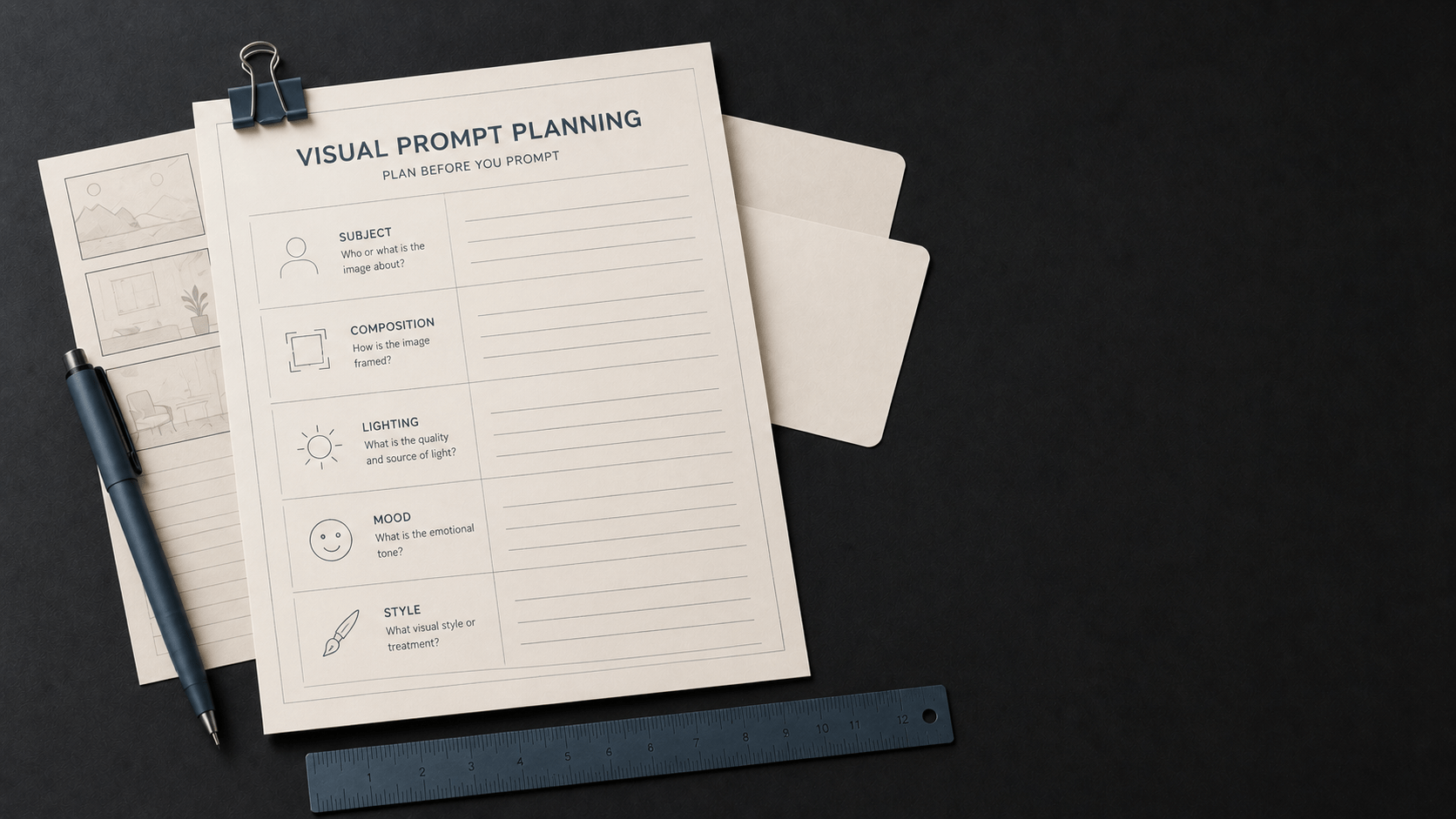
A still image is a single moment. It has a subject, a composition, a lighting condition, and a mood – all captured in one frame. Your prompt needs to describe that frame.
A video is a sequence of moments. It has all of the above, plus motion, progression, and change across time. Your prompt needs to describe what happens, not just what is there.
Here is how that plays out in practice. Suppose you need two assets for a brand campaign: a still hero image and a short social media clip.
| Prompt | A woman in her early 30s reviewing documents at a minimal glass desk. Editorial photography style. Soft diffused window light from the left. Calm, focused atmosphere. 16:9 aspect ratio. |
| Note | Subject, style, lighting, mood, and aspect ratio are sufficient. No motion is needed. |
| Prompt | A woman in her early 30s seated at a glass desk, reviewing documents. She glances up toward the camera and pauses thoughtfully. Camera slowly pushes in from a medium wide shot over 6 seconds. Warm natural window light. Calm, professional atmosphere. |
| Note | Same subject and visual vocabulary – but the video prompt adds motion, action, and time. Those additions change what you need to write. |
Both prompts draw from the same visual language. Only the video prompt needs to describe what moves, how the camera behaves, and how long the clip runs. That distinction is the foundation of visual AI prompting basics.
Key Distinction
Text-to-image: describe a frame.
Text-to-video: describe a frame in motion over time.
Both use the same modifier vocabulary. Video adds motion, temporal direction, and optionally audio.
Why Text Prompting Habits Don’t Transfer
Most people write their first visual prompt the way they write a text prompt: they describe the goal or subject in general terms. The results are often inconsistent.
The reason is straightforward. In text prompting, abstract language works. Words like “professional,” “modern,” or “clear” carry consistent meaning when applied to written outputs. A model can produce a “professional tone” that most readers would recognise.
In visual prompting, those same words are far less reliable. “Professional” could mean a studio-lit white background product photo, a polished editorial portrait, or a corporate headshot with a blue gradient background. Different tools – and even the same tool across different runs – will often interpret it differently.
Compare these two prompts for the same subject:
| Prompt | A professional photo of a product. |
| Note | Abstract. The tool fills in every visual decision – lighting, angle, colour, background, mood – on its own. Results vary significantly. |
| Prompt | A flat-lay product photograph of a kraft paper coffee bag on a dark wood surface. Natural side lighting from the left. Shallow depth of field. Muted earth tones. Square aspect ratio. |
| Note | Specific. The tool has direction on composition, lighting, tone, and format. In many cases, this produces a more consistent and usable result. |
The difference is not the length of the prompt. It is the type of information in it. The first prompt describes an intent. The second describes an image. Visual tools need visual information.
The Language of Visual Prompting: Modifiers
Specific visual language is called a prompt modifier. A modifier is a descriptive element that controls a specific visual quality in the output. Modifiers tell the tool what the image or video should look, feel, and be framed as – beyond just what it depicts.
There are five core modifier types that apply to both text-to-image and text-to-video prompts. Three additional modifier types apply to video only.
| Modifier | Applies To | What It Controls | Example Phrase |
|---|---|---|---|
| Subject | Image & Video | What appears – people, objects, setting, scene | “A woman in her 30s at a minimal wooden desk” |
| Style | Image & Video | The artistic or photographic treatment | “Documentary photography style” / “watercolour illustration” |
| Lighting | Image & Video | Quality, direction, and source of light | “Soft diffused window light from the left” |
| Mood | Image & Video | Emotional register or atmosphere | “Calm and focused” / “dramatic and tense” |
| Aspect Ratio | Image & Video | Width-to-height ratio of the output | “16:9” / “1:1 square” / “9:16 vertical” |
| Motion | Video only | What moves, how it moves, direction | “Camera slowly pushes in” / “subject turns to face camera” |
| Duration | Video only | Length of the clip in seconds | “6 seconds” / “approximately 8-10 seconds” |
| Audio | Video only | Ambient sound, dialogue, or music | “Ambient office sounds” / “no audio” |
You do not need all eight modifiers in every prompt. Start with subject and style. Add lighting and mood for more visual control. Add aspect ratio when format matters. Add motion, duration, and audio only when working in video. Build specificity progressively.
The Tools: Two Categories, Four Platforms
Visual AI prompting is not tool-agnostic. The same prompt submitted to different tools often produces meaningfully different results – because each tool has different strengths, different interpretation styles, and different underlying architectures. Understanding which tool you are using – and how it tends to interpret prompts – is part of the skill.
This chapter covers four platforms that represent the current landscape for content creators and professionals: two text-to-image tools and two text-to-video tools.
Important Distinction
The tools covered here are not base AI models. A base AI model processes language input and produces language output only.
GPT Image, Nano Banana 2, Kling 3.0, and Veo 3.1 are specialised AI systems that connect image or video generation capabilities to a language-based interface. They respond to text prompts, but produce visual output through a generation pipeline that operates well beyond text-only reasoning.
This distinction explains why these tools respond differently to the same prompt – their underlying architecture differs, not just their training data.
Text-to-Image: GPT Image and Nano Banana 2
The two image generation tools covered in this chapter are GPT Image (accessible through ChatGPT) and Nano Banana 2 (Google’s Gemini-based image model). Both are accessible to beginners, both offer free tiers, and both produce high-quality outputs from natural language prompts. They differ in one fundamental way that affects how you write for each.
GPT Image is OpenAI’s image generation capability, accessible directly through ChatGPT. It tends to be a literal interpreter: what you describe in your prompt is closely reflected in the output. If you specify a warm-toned, mid-century office with three people near a whiteboard, GPT Image tends to produce an output that matches those specifics fairly reliably. This makes it a strong choice when accuracy to brief matters – product imagery, editorial illustration, concept visualisation. The tradeoff: underspecified prompts fill gaps with defaults that may not match your intent.
Nano Banana 2 is Google’s latest image model, built on the Gemini Flash backbone. Rather than matching your prompt word-for-word, it uses reasoning capabilities to infer physics, spatial relationships, and compositional logic from what you write. Its two strongest practical differentiators are text rendering – it can generate legible headlines, product labels, and UI mockups accurately within an image – and character consistency across a series of generated images. It is also notably fast, with most images generating in under 20 seconds.
| Dimension | GPT Image (ChatGPT) | Nano Banana 2 (Google / Gemini) |
|---|---|---|
| Interpretation | Literal – closely reflects prompt description | Reasoning-based – infers context beyond explicit description |
| Access | ChatGPT interface; free tier available | Gemini app, Google Search, Artlist; free tier available |
| Text in images | Moderate – improving | Excellent – text treated as first-class element |
| Character consistency | Limited across separate generations | Strong – maintains identity across up to 5 characters |
| Best for | Accuracy-to-brief: product imagery, editorial, concepts | Series production, social content, storyboards, text-in-image |
| Watch for | Underspecified prompts fill gaps with defaults | May add contextually implied elements not in the prompt |
Text-to-Video: Kling 3.0 and Veo 3.1
The two text-to-video tools covered in this chapter are Kling 3.0 (developed by Kuaishou) and Veo 3.1 (developed by Google DeepMind). Both produce high-quality video from text prompts. They differ in output character, audio capability, and the types of scenes each handles best.
Kling 3.0 is best-in-class for realistic human characters in motion – facial expressions, natural body movement, and lip-sync. It generates clips up to two minutes in length and outputs at up to 4K resolution. It is a strong choice for marketing clips, social media content, product demonstrations, and any video where realistic people in motion are the central element. A free tier is available with paid plans starting at approximately $12/month.
Veo 3.1 from Google DeepMind optimises for cinematic visual quality and environmental storytelling. Its most distinctive capability is native audio generation: it produces synchronised sound alongside the video output – ambient environment, dialogue, background music, or sound effects – based on what the prompt describes. It also integrates naturally with Nano Banana 2 for a consistent image-to-video pipeline. Pricing is per-second of video generated, positioning it at the higher cost tier.
| Dimension | Kling 3.0 (Kuaishou) | Veo 3.1 (Google DeepMind) |
|---|---|---|
| Primary strength | Realistic human characters – faces, movement, lip-sync | Cinematic quality – environmental storytelling, colour grading |
| Native audio | No – silent output by default | Yes – ambient sound, dialogue, music from prompt |
| Clip length | Up to 2 minutes | Typically 4-16 seconds depending on platform and tier |
| Resolution | Up to 4K | Cinematic quality; varies by access tier |
| Best for | Marketing, social content, product demos, human-forward scenes | Cinematic scenes, atmospheric storytelling, brand films |
| Access & cost | Web-based; free tier; paid from ~$12/month | Google Flow (US) and third-party platforms; per-second pricing |
| Watch for | Less cinematic atmosphere than Veo 3.1 | Shorter clips; higher cost; human anatomy less precise |
Same Prompt, Different Results
The most important principle to internalise early is this: the same prompt tends to produce different results across different tools. This is not a flaw. It is a feature of how each tool is designed.
Here is the same prompt submitted to both image tools:
| Prompt | A street food market at night. Neon signs in the background. Shallow depth of field. Warm light on a vendor’s hands as they plate food. Documentary photography style. |
GPT Image tends to construct the scene literally – each described element positioned in the frame roughly as specified. The result is often clean and accurate, with good adherence to the prompt’s visual parameters.
Nano Banana 2 tends to infer more from the implied context. It may generate ambient light bounce, background crowd depth, and surface-level physics – steam, reflections, surface textures – that were not explicitly requested, because its reasoning layer infers that a night street food market plausibly involves those elements.
Neither approach is better by default. GPT Image gives you tighter control over the literal output. Nano Banana 2 gives you a richer interpretive result, but may include elements you did not ask for. Knowing which you are working with tells you how much to specify – and what to check for in the output.
Prompting Implication
For GPT Image: specify every visual element you care about. What you leave out will be filled in by default.
For Nano Banana 2: specify your intent clearly, then review the output for contextually inferred elements you may not have wanted.
For Kling 3.0: more explicit human-action description tends to produce better results.
For Veo 3.1: more emphasis on environment, lighting, and atmospheric qualities pulls out its strengths.
Building Your Visual Prompting Practice
The shift from text prompting to visual prompting is not about memorising a new set of rules. It is about changing what you pay attention to when you write. In text prompting, you ask: what do I want the AI to produce? In visual prompting, you also ask: what should it look like?
Here is a simple approach to start:
- Start with your subject. Describe what appears in the image or video.
- Add one visual modifier at a time. Begin with style, then add lighting or mood as needed.
- Replace abstract quality words. Swap “nice” or “professional” for specific descriptions of style, light, or composition.
- Specify aspect ratio when format matters. Square, landscape, and portrait formats are not interchangeable.
- For video, add motion and duration. Describe what moves, how the camera behaves, and how long the clip runs.
- Review output against intent. If the result does not match what you had in mind, adjust the specific element that is off – not the whole prompt at once.
Article 7-2 covers prompt modifiers in full detail. Article 7-4 walks through the complete five-component text-to-image prompt structure with worked examples. Article 7-5 covers text-to-video prompting and how motion changes what you need to write.
Key Takeaways
- Visual AI prompting basics require visual information. Describing purpose or intent is not enough – prompts need to describe what the output actually looks like.
- Two output categories exist: text-to-image (describe a frame) and text-to-video (describe a frame in motion over time). Both use the same core modifier vocabulary; video adds motion, duration, and optionally audio.
- Abstract descriptors like “professional” or “modern” typically produce inconsistent results. Specific modifier language tied to style, lighting, mood, and composition works better.
- Four tools are covered in Chapter 7: GPT Image and Nano Banana 2 for images; Kling 3.0 and Veo 3.1 for video. Each tool interprets prompts differently – knowing how your tool works shapes how you write for it.
- The same prompt tends to produce different results across different tools. This is expected. Adjust emphasis based on each tool’s strengths.