
Introduction
If you have ever needed a spreadsheet formula to flag rows that meet a specific condition – or a quick script to clean up a file before importing it – you know how much time those small technical tasks can consume. Most professionals are not developers. Writing a VLOOKUP from memory or debugging a Python script is not part of a typical workday.
AI prompt code generation changes that dynamic. With a well-structured plain-language prompt, you can describe what you need in everyday terms and receive a working formula or script in return. You do not need to learn a programming language to benefit from this capability.
This article explains how AI prompt code generation works, what makes a prompt effective for code tasks, and how to apply this approach across three practical use cases: spreadsheet formulas, text transformation scripts, and regex logic. It also covers what you need to do before using any generated output in a real workflow.
What AI Code Generation Actually Does
Base AI models – those without access to tools or external data – generate code from the text you provide. When you describe a formula or script in plain language, the model uses its training to produce code that matches your description.
The model does not run the code before returning it to you. It does not test for errors or verify that your specific file structure is accounted for. What you receive is a candidate output – a starting point that will typically work as written, but may require testing and adjustment depending on your setup.
This distinction matters. AI prompt code generation is not a one-click solution. It is a practical method for getting to a working first draft faster than building from scratch. In many cases, the first output will work with little or no adjustment. In others, you will need a follow-up prompt or a small manual fix.
The good news is that the iteration cycle is faster than traditional coding. You can describe what went wrong – or paste the error message directly – and ask the model to adjust its output. For non-developers, this is often more accessible than debugging code independently.
The Four Components of an Effective Code Generation Prompt
The same four-component structure that applies to document automation prompts also applies to code generation. The specific content of each component changes, but the structure stays the same.
| Component | What It Contains | Example |
|---|---|---|
| Role context | States what the output will be used for and by whom | I work in operations and manage a shared tracking spreadsheet in Excel. |
| Task description | Describes precisely what the code should do | Write a formula that checks if the value in column C is greater than 500. |
| Output format | Specifies the target tool, language, or format | Return an Excel formula I can paste directly into a cell. |
| Constraints | Defines limits, edge cases, or things to exclude | If the value is blank, the cell should return empty – not an error. |
The more specific your task description and constraints, the less likely you are to receive output that is technically correct but does not fit your situation. Vague prompts often return generalized code that works in theory but needs adjustments for your actual column names, file format, or business rules.
Three Practical Use Cases
Use Case 1: Spreadsheet Formulas
Spreadsheet formula prompts are among the most accessible entry points for AI code generation. Most professionals who work with Excel or Google Sheets already understand what outcome they need – they just lack fluency with formula syntax.
A formula prompt works best when you name the columns involved, describe the condition or calculation in plain language, and specify what should happen in edge cases – such as blank cells or values outside the expected range.
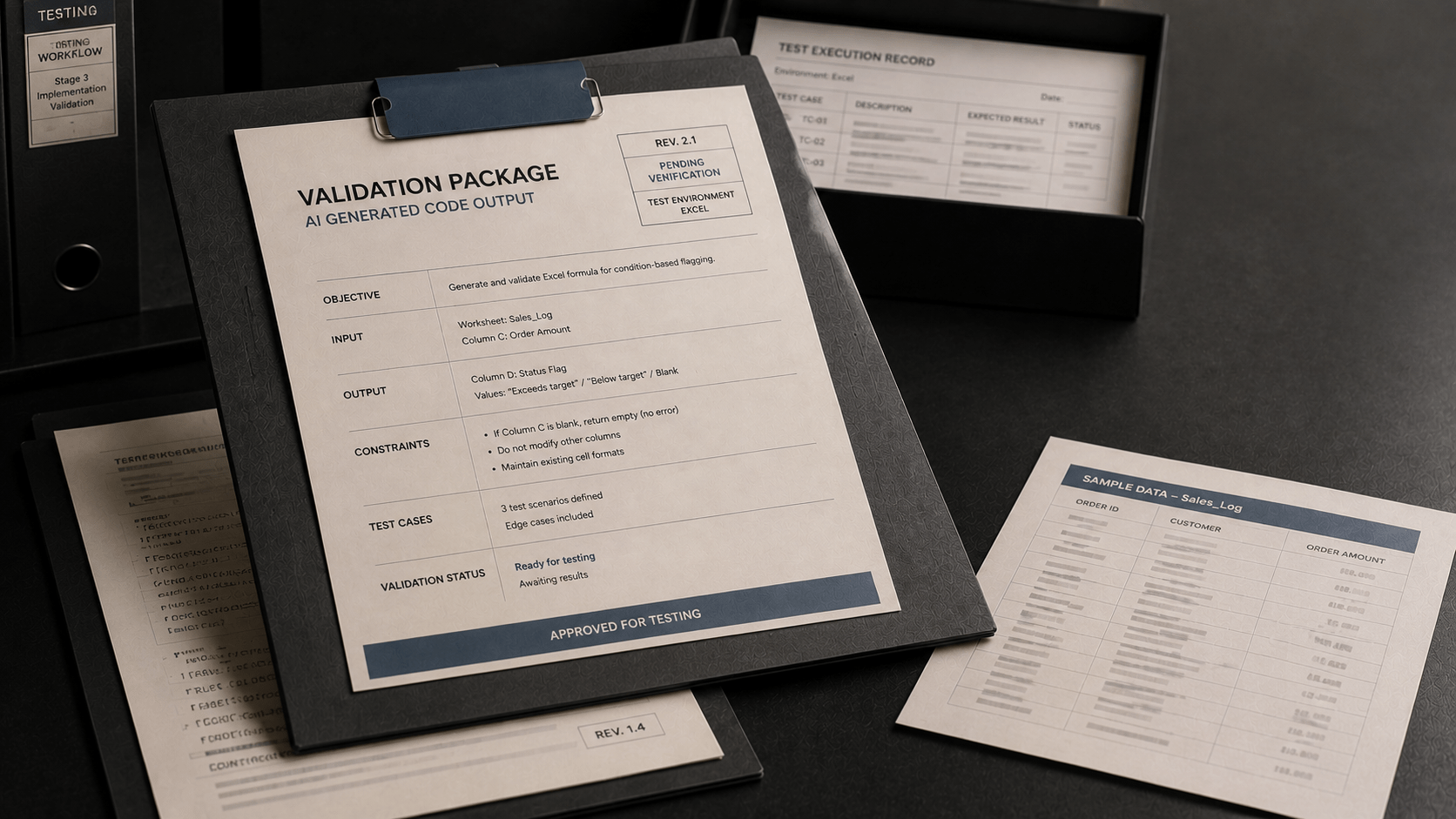
| Prompt | I manage a project tracking spreadsheet in Excel.
Write a formula for column D that checks if the value in column C is greater than 100. Return the formula only. No explanation needed. |
Notice what this prompt includes: the tool (Excel), the specific columns, the condition, the two return values, and an edge case instruction for blank cells. Each of these details reduces the chance of receiving a formula that needs significant adjustment.
For Google Sheets users, the same prompt structure applies – just specify Google Sheets instead of Excel, as some function names differ between the two platforms.
Common formula types that tend to produce reliable results from code generation prompts include:
- Conditional logic (IF, IFS, SWITCH)
- Lookup and reference (VLOOKUP, XLOOKUP, INDEX/MATCH)
- Text manipulation (CONCATENATE, LEFT, RIGHT, MID, TRIM)
- Date and time calculations
- Counting and summing with conditions (COUNTIF, SUMIF, COUNTIFS)
Use Case 2: Text Transformation Scripts
Text transformation scripts handle tasks that would be tedious to perform manually – cleaning up a CSV file, reformatting a column of data, removing rows that meet a certain condition, or splitting a field into multiple columns.
For this use case, the most important element of the prompt is precision about the input and output. The model does not know how your file is structured unless you tell it. Name the columns, describe the file format, and specify what the output file should look like.
| Prompt | I have a CSV file called “contacts.csv”. It has the following columns: First Name, Last Name, Email, Status, Date Added. Write a Python script that: Do not modify any other columns. Use standard Python libraries only – no third-party packages. |
The instruction to use standard libraries only is a useful constraint. It prevents the script from importing packages you may not have installed, which can create extra setup work before you can run the output.
If you need to work with Excel files (.xlsx) rather than CSV, specify that in the prompt – and note whether you want the script to use openpyxl or another specific library. The more context you provide about your environment, the more usable the first output tends to be.
After receiving the script, do not run it directly on your original file. Create a copy or a sample file first. Test the output on that copy. Verify that the result matches your expectations before applying the script to live data.
Use Case 3: Regex and Lookup Logic
Regular expressions – often called regex – are patterns used to match, extract, or validate text. They are useful for checking whether a field contains a specific format, extracting part of a string, or identifying entries that do not conform to a required structure.
Regex syntax is notoriously difficult to write from memory. It is also a strong candidate for code generation prompts, because the logic can be described plainly even when the syntax is complex.
| Prompt | Write a regular expression that matches UK phone numbers in the following format: – Starts with +44 – Followed by a space – Then 10 digits, which may include spaces between groups Examples that should match: Examples that should NOT match: Return the regex pattern only, with a brief explanation of each component. |
The inclusion of matching and non-matching examples is important for regex prompts. It gives the model concrete boundary cases to work from, which often produces more accurate patterns than a description alone.
Regex outputs typically require testing in a real environment before use in production. Tools like regex101.com allow you to test a pattern against sample data quickly. Paste the generated pattern in, run it against your examples, and adjust the prompt if needed.
Lookup logic prompts follow a similar structure. If you need a formula that searches one table for a value from another, describe both tables, name the key columns, and specify what should happen when no match is found. VLOOKUP and XLOOKUP prompts in particular benefit from this level of detail.
Building a Reusable Code Generation Prompt
Once you have a formula or script that works, the prompt that generated it becomes a reusable template. Save it alongside the output. The next time you need a similar formula or script, you can adapt the existing prompt rather than writing a new one from scratch.
A reusable code generation prompt template typically has a fixed structure with variable placeholders – the parts that change from task to task. Here is an example of what that looks like for a spreadsheet formula:
| Template | I work with [TOOL – e.g., Excel / Google Sheets].
Write a formula for [TARGET COLUMN] that [DESCRIBE THE CONDITION OR CALCULATION]. If [EDGE CASE – e.g., the cell is blank / the value is negative], return [EDGE CASE OUTPUT]. Return the formula only. No explanation. |
The items in square brackets are the variable placeholders – the parts you fill in for each specific task. Everything else stays fixed. Over time, a small library of templates like this one can significantly reduce the effort involved in using code generation prompts regularly.
Before You Use Generated Code
Code generated from a base AI model has not been executed or validated before it is returned to you. In most cases, the output will be functionally correct – but you should treat it as a draft that requires testing, not a finished product ready for immediate use.
Follow these steps before applying any generated formula or script to a real workflow:
- Test in a safe environment first. Use a copy of your file, a sample dataset, or a sandbox folder. Do not apply generated code directly to live data.
- Verify the output matches your expectations. Run the formula or script and check whether the results are what you intended. Pay attention to edge cases – blank cells, unexpected formats, values outside the expected range.
- If the output is not correct, describe what went wrong in a follow-up prompt. Paste the error message if there is one. Ask the model to adjust the logic based on the specific issue. Iteration typically resolves most problems within two or three exchanges.
- Once the output is confirmed, save the working prompt. Note any adjustments you made. That documentation becomes the basis for a reusable template.
This review step is not optional. It is part of the workflow. Skipping it is one of the most common reasons code generation prompts appear to fail – often the first output was close to correct, but was applied before it was tested.
What Affects Output Quality
The reliability of code generation outputs varies depending on several factors. Understanding these helps you set realistic expectations and structure prompts more effectively.
Task complexity. Simple, well-defined tasks – like a conditional IF formula with two return values – tend to produce reliable first outputs. More complex logic, multi-step scripts, or tasks with many dependencies may require more iteration.
Specificity of the prompt. Prompts that name columns, describe file formats, and specify edge cases produce more usable outputs than general descriptions. The model can only account for what you tell it.
Tool and language version. If your spreadsheet uses functions that are specific to a newer version of Excel or Google Sheets, state that in the prompt. Similarly, if you need Python 3.9-compatible code rather than the latest syntax, include that constraint.
Edge cases and constraints. Blank cells, unexpected input formats, and values outside the expected range are common sources of formula or script errors. Describing these in the prompt – rather than discovering them during testing – often saves time.
What This Approach Is Not
AI prompt code generation is a practical method for lightweight automation. It is not a substitute for software development, and it is not designed for all types of code tasks.
Tasks that typically fall outside the scope of this approach include:
- Production code intended for deployment in a shared system or client environment
- Scripts that interact with live databases, APIs, or authentication systems
- Automation that handles sensitive or regulated data without human review
- Complex multi-file projects that require dependency management or version control
For these types of tasks, a qualified developer should be involved. The use cases covered in this article – spreadsheet formulas, text transformation scripts, and regex logic – are intentionally low-complexity and designed for individual professional use in controlled environments.
Key Takeaways
- AI prompt code generation allows you to describe spreadsheet formulas, text transformation scripts, and regex logic in plain language – and receive working code in return. You do not need a coding background to benefit from this capability.
- An effective code generation prompt includes four components: role context, task description, output format specification, and constraints. The more specific your prompt, the more usable the first output tends to be.
- Base AI models generate code from the text you provide. They do not execute the code before returning it, and they do not have access to your file structure or business rules unless you include that information in the prompt.
- Always test generated code in a safe environment – a file copy or sample dataset – before applying it to live data. Treat the first output as a draft, not a finished product.
- If the output requires adjustment, describe what went wrong in a follow-up prompt – paste the error message if there is one. Iteration typically resolves most issues within a few exchanges. Once confirmed, save the working prompt as a reusable template with variable placeholders for future tasks.